Yes. You can use a footrest to raise your feet if the desk is too high, or adjust your chair height up. If using a lower chair, add a desk riser or keyboard tray to maintain proper keyboard height. A keyboard tray mounted below your desk keeps your wrists neutral even with a high desk surface.
Complete Setup Guide
Desk Setup Fundamentals
A detailed guide to optimising each component of your workspace for comfort and productivity. Educational information covering monitor placement, chair adjustment, keyboard and mouse positioning, and lighting considerations.
Monitor Height and Distance
Your monitor should be positioned at arm's length away from your seated position, typically 50–70cm depending on screen size and personal preference. The top of the monitor should be at or slightly below eye level when looking straight ahead.
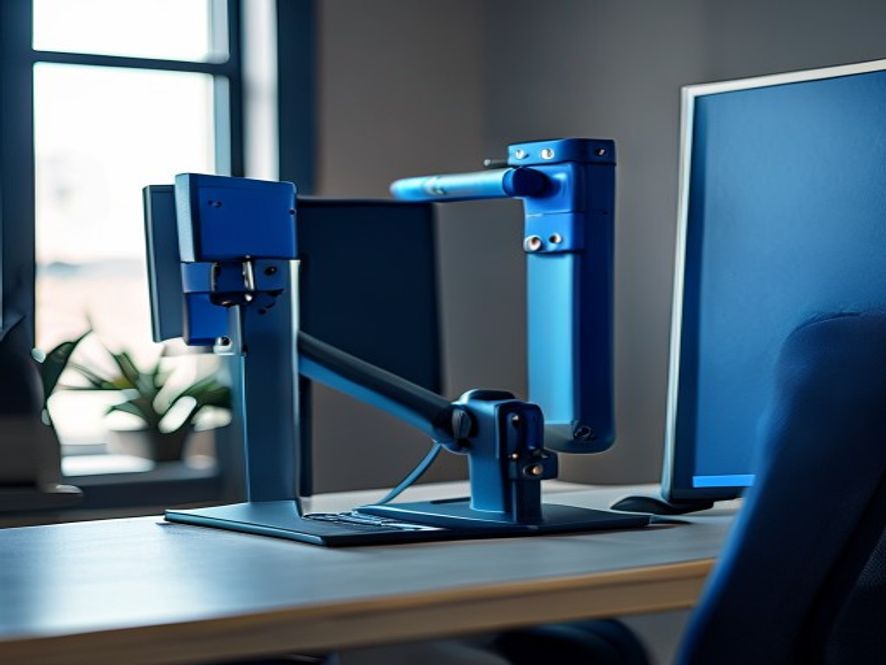
Many office workers position monitors too high, causing neck strain from upward gaze, or too close, leading to eye fatigue. Use a monitor arm for flexible adjustment without taking up desk space.
- Arm's length away (approximately your elbow to fingertips)
- Top of screen at or below eye level
- Screen directly in front, not angled
- Anti-glare filter if working near windows
Chair Selection and Adjustment
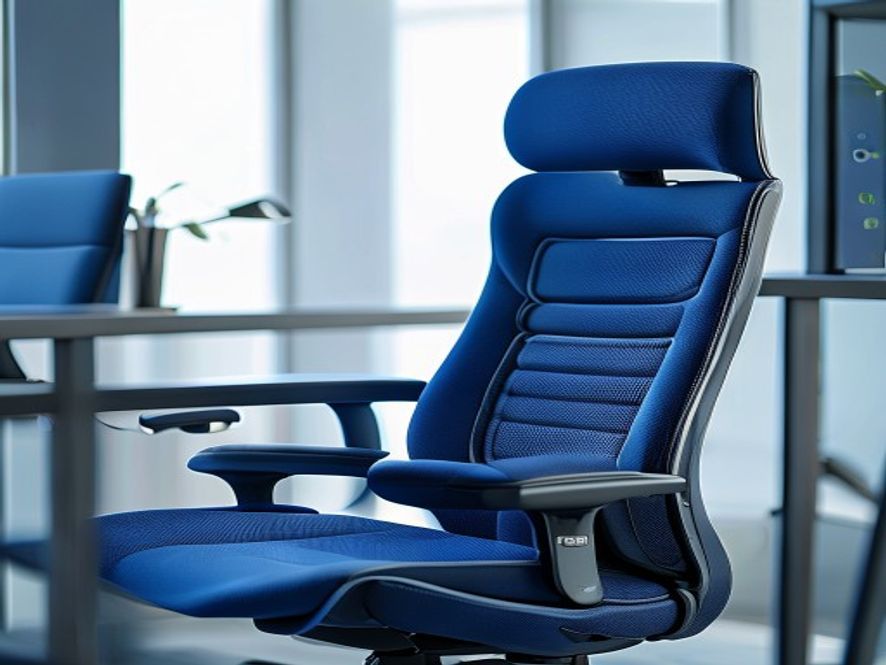
Your chair is one of the most important ergonomic tools. A good office chair provides lumbar support, proper seat height, and armrest adjustment. Seat height should allow your feet to rest flat on the floor with knees at approximately 90 degrees.
The lumbar region (lower back) needs support to maintain neutral spine positioning. Most modern office chairs have adjustable lumbar support. Armrests should support your arms at desk height without forcing your shoulders up.
- Adjustable seat height: feet flat on floor, knees at 90°
- Lumbar support at lower back curve
- Armrests at elbow height when seated
- Seat depth allows 3–4 fingers behind knees
- Recline function for position variation
Keyboard and Mouse Positioning
Optimal positioning for input devices supports neutral wrist posture and reduces forearm strain.
| Component | Positioning Guideline | Common Mistake | Adjustment Approach |
|---|---|---|---|
| Keyboard Height | Elbows at 90°, wrists neutral/straight | Keyboard too high, forcing wrist bend | Use adjustable desk or keyboard tray |
| Mouse Position | Same height as keyboard, close to body | Mouse too far, requiring arm reach | Keep mouse adjacent to keyboard, not extended |
| Wrist Posture | Straight or neutral, not bent up or down | Wrists resting on desk edge while typing | Add wrist rest or adjust desk height |
| Forearm Support | Rested on armrest or desk during pauses | Forearms hanging or extended unsupported | Adjust armrests or add external support |
Lighting and Eye Comfort
Proper lighting reduces eye strain and supports comfortable screen work throughout your day.
Natural Light
Position your desk to benefit from natural light without direct glare on your monitor. Windows to the side of your screen are ideal, reducing reflection.
Task Lighting
Add a desk lamp for focused light on documents or written materials. Ensure it doesn't create glare on your screen. Warm white (2700K) is comfortable for extended work.
Screen Brightness
Match monitor brightness to your room lighting. Reduce blue light in late afternoon if preferred. The 20-20-20 rule: every 20 minutes, look 20 feet away for 20 seconds.
Quick Setup Checklist
Chair & Desk
- Seat height: feet flat, knees 90°
- Lumbar support engaged
- Armrests at elbow height
- Desk surface clear and organised
Monitor & Input
- Monitor at arm's length, eye-level top
- Keyboard directly in front
- Mouse adjacent, not extended
- Wrist rest available if needed
Environment
- Lighting without glare
- Room temperature comfortable
- Noise managed or minimised
- Space for movement breaks
Common Setup Issues and Solutions
Laptops present a challenge because the keyboard and screen are fixed together. Elevate your laptop on a stand or books to bring the screen to eye level, then use an external keyboard and mouse for proper positioning. This simple setup makes a significant difference in comfort during longer work sessions.
Focus on adjustments within your control: monitor arm or stand, portable keyboard tray, document holder, and footrest. Movement breaks become even more important in fixed setups. Even small ergonomic improvements can enhance comfort within your constraints.
Review your setup at least weekly. Body shape, posture habits, and workload change over time. Seasonal changes in natural light may affect your ideal monitor position. Monthly check-ins help maintain an optimised workspace.
Next Steps
Ready to optimise your desk setup? Schedule a consultation or explore our other resources.